
Starlink
Space Exploration Technologies Corp.Tools
4.611.32K Reviews
- Version
- 2026.28.0
- Installs
- 10.00M
- Age Rating
- Everyone
Screenshots

Our Review of Starlink
 Analysis by Appyee
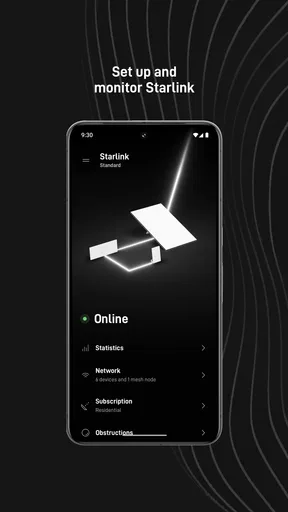
When I first opened Starlink, I treated it less like a typical internet app and more like a control panel for a piece of equipment at home. That distinction matters. It is not trying to replace your browser, speed-test utility, or general network settings. Its job is to help you move from having Starlink hardware in front of you to having a working connection, then keep an eye on that service afterward.
That makes it especially useful during the awkward first stage of installation, when you are standing near the dish, router, cables, and power supply and simply want to know what to do next. The app gives that process a clearer path than guessing from labels or jumping between unrelated phone settings. I found the experience most valuable when I used it as a companion to the physical setup rather than as an app I would browse casually every day.
Space Exploration Technologies Corp. develops this free tools app, and its general audience is broad: the content rating is Everyone, while the minimum operating-system requirement is Android 8.0. On Google Play, it has passed 10 million installs and holds a 4.7 average from around 255,000 ratings. Those figures suggest that it has become a familiar part of the Starlink ownership experience, but popularity does not make every screen equally useful. The real question is whether it fits the way you plan to install and manage the service.
From unopened equipment to a working connection
Before I unpack the equipment, I think about who will handle each part of the installation and who will check the connection afterward. That small bit of planning can prevent a shared household device from becoming a source of confusion, especially when the person holding the phone is not the account holder. Next, I’d look at how to keep those responsibilities clear while setup is underway.
The starting condition: the app is most useful before everything is settled
The strongest reason to install this app is that your Starlink service is not yet behaving like an ordinary home internet connection. You may have the equipment unpacked, a phone in your hand, and no clear idea whether the problem is placement, power, cabling, or the network itself. In that situation, the app provides a single place to begin instead of forcing you to interpret every physical component on your own.
I would install it before putting the dish in its final position. That small change in timing makes the workflow easier because you can move through setup while you still have access to the hardware. It also avoids a common mistake: treating the first successful connection as proof that the installation is finished. A connection can work while the placement remains inconvenient, obstructed, or difficult to maintain.
The opening experience is focused on getting the service recognized and moving toward operation. Rather than presenting a large collection of unrelated tools, it keeps attention on the relationship between the Starlink equipment and the account or service being managed. That focus is helpful for a first-time owner, although experienced network users may find it less flexible than a collection of independent diagnostic tools.
Following the setup flow without rushing the physical work
My advice is to follow the on-screen sequence while physically checking each part of the installation. Do not tap through instructions just to reach the status screen. The phone can tell you what stage the service is in, but it cannot remove the need to choose a sensible location for the dish, connect the equipment correctly, and leave the hardware in a position where it can operate reliably.
This is one of the app’s less obvious strengths: it keeps the digital and physical parts of the job connected. A normal Wi-Fi utility might show that your phone is connected to a network, but it would not guide you through the Starlink-specific transition from equipment setup to service monitoring. The official app is better at that handoff because it understands what the hardware is supposed to be doing.
There is also a useful discipline in checking the app after each meaningful physical change. If you move equipment, reconnect a cable, or restart the setup, give the service time to settle before deciding that the change worked or failed. Constantly changing several things at once makes diagnosis harder. The app is most informative when you use it as a sequence of small checks rather than as a button you press whenever something feels wrong.
A realistic everyday example
Imagine setting up Starlink at a weekend property. You arrive with the equipment, connect the system, and use the app to work through the initial process. The first connection appears, but later that evening the service becomes inconsistent. Instead of assuming the router is defective, you can return to the app, inspect the current service state, and compare what it reports with what changed outside: perhaps the dish was placed where nearby objects can interfere, or a cable was disturbed while the equipment was secured.
That workflow is more practical than opening a generic speed-test app and seeing only a disappointing result. A speed test can tell you what happened at one moment; the Starlink app helps you investigate the Starlink service itself. I still like using a separate speed test when I want a simple performance snapshot, but I would start with the official app when the question is whether the service is connected and healthy at its source.
Where the handoffs happen
The app cannot complete the installation by itself, so several handoffs deserve attention. The first is between the person installing the equipment and the person managing the account. If one person handles the physical setup while another expects to monitor the service remotely, make sure both understand which account and service they are working with. Confusion at this stage can look like a hardware failure when the real issue is simply that the wrong service context is open.
The second handoff is between the app and the phone’s connection to the Starlink equipment. Your phone may be connected to another saved Wi-Fi network, mobile data, or a different local network. When the app does not show the state you expect, check the phone’s active connection before repeatedly restarting the equipment. That simple check can save time because the app depends on being able to communicate with the service in the expected way.
The third handoff is between setup and ongoing monitoring. Once the service works, the app becomes less of a guided installer and more of a reference point. I would not keep it open constantly. Instead, I would return to it when placing equipment, checking a reported issue, confirming a change, or helping someone else understand the current state of the connection.
What the monitoring role actually adds
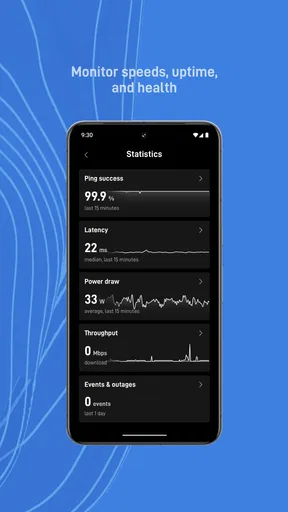
After installation, the app’s value comes from turning an invisible internet connection into something you can inspect through the Starlink service interface. That is useful when a family member says the internet has stopped working, when you have changed the equipment’s location, or when you want to check the service before blaming every device in the house.
It is important to separate service monitoring from device troubleshooting. If one laptop cannot connect while other devices work, the problem may be on that laptop rather than in Starlink. If every device is affected, the app becomes a more sensible first place to look. This distinction prevents the common habit of treating the official app as a universal repair tool.
I also appreciate that the app is more relevant to the owner than to a visitor. A guest who only needs the Wi-Fi password does not need the full management experience. The owner, installer, or household member responsible for the connection does. That makes it a specialized tool with a clear audience rather than an app everyone in the home must understand.
Useful habits that are easy to overlook
One practical habit is to check the service from the same physical location where the problem is being reported. If you are helping someone over the phone, ask them to stand near the equipment and open the app rather than relying on a vague description such as “the internet is slow.” This creates a cleaner handoff between the person experiencing the issue and the person interpreting it.
A second habit is to record what changed before opening the app. Did the equipment move? Was power interrupted? Did only one device fail? Did the issue begin after a new cable arrangement? These details give the app’s status information meaning. Without them, you may see a warning but still not know which action is worth trying first.
A third is to use the app before changing advanced settings elsewhere. Generic router controls and phone network menus can be useful, but they can also introduce new variables. For Starlink-specific questions, the official control surface is the logical starting point. Only move to broader network troubleshooting when the app indicates that the service itself is operating normally or when the problem clearly affects a single device.
These are not flashy features, but they are the difference between using the app as a setup checklist and using it as part of a repeatable support workflow. The best result comes from combining what the app reports with what you can see and touch around the installation.
How it compares with the usual alternatives
Compared with a generic router-management app, this one is narrower but more relevant to Starlink hardware. A router utility may offer broader controls for local networks, while the Starlink app is better suited to the service-specific journey from installation to monitoring. If you own several brands of networking equipment and want one universal dashboard, a separate network tool may fit your habits better.
Compared with a speed-test app, the difference is even clearer. A speed test gives you a result that can vary with time, device, and local conditions. The Starlink app is the better first stop for understanding whether the service is connected and what state it reports. I would use both when necessary, but not interchangeably.
Compared with searching support pages in a browser, the app feels more direct during setup because it is already positioned around the service you are trying to operate. Browser-based help can still be better when you need long explanations, account-related guidance, or a solution to an unusual problem. The app handles the immediate workflow; written support is often better for the edge cases.
Where the flow breaks down
The main limitation is that the app cannot compensate for a poor physical installation. If the dish is placed badly, the equipment has an unstable power supply, or a cable is damaged, no amount of tapping will turn that into a reliable connection. The interface can help identify a problem, but the final fix may require moving equipment or inspecting the installation in person.
Another point of friction is expectation. Some users may open the app hoping for a complete replacement for every router, network, and device diagnostic function. That is not how I would judge it. Its strength is being the official Starlink-specific control and monitoring layer. If you need detailed analysis of every device on a home network, you may prefer an additional tool rather than expecting this app to provide all of it.
There is also a human limitation: the app’s information is only useful if the person reading it understands the situation around it. A status screen can narrow the search, but it does not automatically explain whether a household problem comes from placement, a local device, power, or a temporary service condition. I found the app most effective when I treated its messages as evidence, not as a complete diagnosis.
For people who do not own Starlink hardware, I would skip it. It is not a general internet utility that becomes valuable simply because it is free. It is also not the right first choice for someone who only wants to measure Wi-Fi speed or manage a different router brand. The app earns its place when Starlink is the service being installed or monitored.
Version, access, and day-to-day fit
The current version is 2026.20.0, and the app is free to install. It was released on October 23, 2020, so it has had time to become an established companion rather than a brand-new experiment. The large install base and strong rating are reassuring for someone deciding whether the official app is worth using, although I would still judge it by the specific job you need it to perform.
Because it supports Android 8.0 and newer, it remains accessible to people using older Android phones that still handle their everyday apps. The Everyone age classification also makes sense for a household tool. In practical terms, the important question is not age or technical enthusiasm; it is whether you are responsible for setting up or checking a Starlink connection.
My final workflow recommendation
I would install the app before beginning the physical setup, keep the phone close while connecting and positioning the equipment, and pause after each major change instead of making several adjustments at once. Once the service is working, I would keep the app available for service checks but use a separate speed-test or device-troubleshooting tool when the problem clearly belongs elsewhere.
The result is a focused experience that does one important job well: it connects the owner’s phone to the practical process of getting Starlink running and understanding its current state. It is not a universal network toolbox, and it cannot solve every installation problem from the screen. Still, for a Starlink customer, the official app is the sensible first checkpoint whenever setup, service status, or equipment-related troubleshooting is involved.
My recommendation is straightforward. If you are installing Starlink, managing it for a household, or helping someone troubleshoot the connection, use it as part of the complete workflow rather than waiting for trouble. If you only want generic network measurements or controls for unrelated hardware, choose a broader utility instead. For its intended role, I found it practical, clear, and much more useful when paired with careful physical checks than when treated as a standalone magic fix.
Privacy and Permissions
See what permissions an app requests and how it handles your data.
- Location
- approximate location (network-based), precise location (GPS and network-based)
- Photos/Media/Files
- read the contents of your USB storage, modify or delete the contents of your USB storage
- Storage
- read the contents of your USB storage, modify or delete the contents of your USB storage
- Camera
- take pictures and videos
- Wi-Fi connection information
- view Wi-Fi connections
- Other
- view network connections, change network connectivity, connect and disconnect from Wi-Fi, full network access, run at startup, draw over other apps, control vibration, prevent device from sleeping
Verdict
Strengths of Starlink
- Fast internet in remote and rural areas
- Quick setup with user-friendly hardware
- Useful mobile app for network management
- Low-latency performance supports streaming and gaming
- Portable service options are available in some regions
Limitations of Starlink
- Equipment costs can be high upfront
- Service quality may drop during heavy rain or snow
- Clear sky visibility is required for reliable performance
- Monthly plans may be expensive compared with local broadband
- Availability and plan options vary by country
Similar Picks in This Category
View All
Google LLC4.0

Gboard - the Google Keyboard
Google LLC4.5

Google Play services
Google LLC4.3

Google Play Store
Google LLC4.9

Files by Google
Google LLC4.5

SHAREit: Transfer, Share Files
Smart Media4U Technology Pte.Ltd.4.3
Frequently Asked Questions
What is Starlink, and how does the app work?
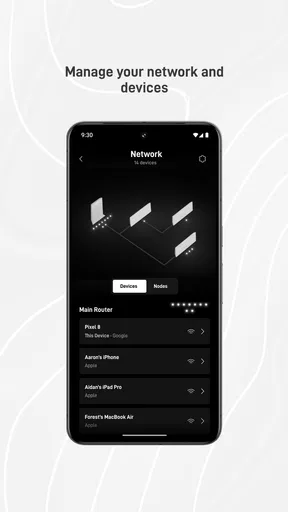
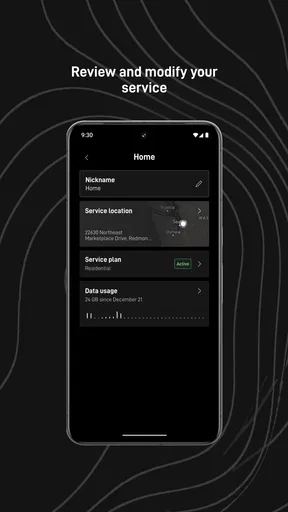
Starlink is the companion app for SpaceX’s satellite internet service. It helps customers set up and manage their Starlink hardware, check connection status, view network performance, identify obstructions, and access support. The app itself does not provide internet access without an active Starlink subscription and compatible equipment. Its available features may vary depending on your service plan, location, and hardware generation.
Can I use the Starlink app without owning Starlink equipment?
You can download and open the Starlink app without a dish, but most management features require an active Starlink account and installed hardware. Without equipment, you may be able to browse general information, review service availability, or explore setup guidance, but you cannot test a real connection or change network settings. A subscription and approved Starlink kit are required to use the service fully.
What permissions does the Starlink app require?
During setup and troubleshooting, Starlink may request permissions such as Wi-Fi or local network access, Bluetooth access, location services, and camera access. These permissions help the app connect to nearby hardware, detect obstructions using your phone’s sensors or camera, and guide you through installation. Some permissions may be optional, but denying them can limit setup tools, diagnostics, or device-management features.
Does the Starlink app show real-time internet performance?
Yes, the app can provide useful information about your Starlink connection, including network status, outages, latency, download and upload performance, and alerts. However, results can change significantly because satellite visibility, weather, congestion, equipment placement, and local network conditions all affect performance. The app’s measurements should be treated as practical guidance rather than a guaranteed speed or uptime promise.
Is the Starlink app free to download, and are there additional costs?
The Starlink app is generally free to download from the official Android or iOS app store, but downloading it does not include internet service. Customers must usually pay for Starlink hardware, an activation or shipping charge where applicable, and a recurring subscription. Prices, plan availability, taxes, equipment policies, and cancellation terms vary by country and service type, so check the official Starlink website before ordering.
